
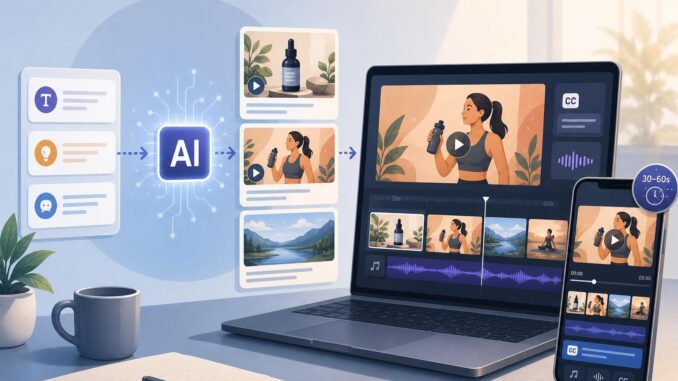
Short marketing clips—30 to 60 seconds—are a staple for social ads, landing-page hero videos, and email headers. Text-to-video tools let small teams and creators turn scripts into finished clips much faster than a fully manual production. This guide compares six widely used tools and gives a practical, repeatable workflow: script templates, example prompts, a shot/asset breakdown, quick editing and captioning tips, export settings, privacy notes, and a buying checklist.
Quick side-by-side comparison
Below are six representative tools and their practical strengths. Use the one-column decision matrix after the list to pick the right fit for speed, fidelity, or budget.
- Runway — Strong for generative motion and creative editing; good if you want custom visuals and scene-by-scene control.
- Synthesia — Best for avatar-led explainer clips with professional localized voice and script-to-voice pipelines.
- Pika Labs — Fast iteration on short creative scenes and concept testing; good for brainstorming visual styles.
- Lumen5 — Template-driven conversion of blog posts or scripts into videos; efficient caption and asset management for social posts.
- InVideo — Practical editor with text-to-video features and stock asset library; balances ease-of-use and manual polishing.
- Kaiber — Useful when you want stylized motion from a still or strong art-direction presets; good for eye-catching hero loops.
One-column decision matrix (at a glance)
- Runway — Best for high-fidelity, creative visual control.
- Synthesia — Best for spoken, avatar-style messaging with minimal filming.
- Pika Labs — Best for fast creative testing and concept iterations.
- Lumen5 — Best for transforming text/blog content into captioned clips.
- InVideo — Best balance of speed and manual editing for marketers.
- Kaiber — Best for stylized, artful short loops and hero visuals.
Step-by-step workflow: From script to finished 30–60s clip
1. Define the goal and core message (30–60 seconds)
Start with one clear objective: awareness, click, sign-up, or download. Keep the message to a single idea. For example: “Sign up for a free trial and get a 7-day plan” or “See how X saves 2 hours per week.” A tight message helps keep scenes focused and captions concise.
2. Script template and timing
Use this simple timing template for a 30–60s spot:
- 0–3s: Hook (visual + 3–6 words headline)
- 4–15s: Problem + quick emotional cue
- 16–35s: Solution + product/benefit highlights (2–3 short shots)
- 36–50s: Social proof/CTA + closure (logo, offer, link)
Example 45-second script (voiceover + captions):
Hook: “Lose hours to manual reporting?”
Problem: “Manual reports take time—and they’re error-prone.”
Solution 1: “AutoReports fills templates in seconds.”
Solution 2: “Export to Excel, Slack, or PDF instantly.”
Proof: “Trusted by teams who cut reporting time in half.”
CTA: “Try AutoReports free for 14 days. Link below.”
3. Write tool-specific prompts
Each tool expects different prompt styles. Below are short templates you can adapt. Keep prompts descriptive and include: style, pacing, shot type, and tone.
Runway-style prompt (scene-by-scene):
Scene 1 (0-3s): Close-up, dynamic motion, bright contrast. Text overlay: "Lose hours to reporting?" Hook, upbeat tempo.
Scene 2 (4-12s): Medium office shot showing frustrated person, slightly desaturated. Quick cut to laptop with messy spreadsheet.
Scene 3 (13-30s): Quick montages of AutoReports auto-filling templates, exporting files. Clean UI overlays, punchy transitions.
Scene 4 (31-45s): Logo, CTA button animation, upbeat music fade-out.
Synthesia-style prompt (avatar + voice):
Avatar: professional, friendly female. Script: [paste full voice script]. Tone: concise, confident. Captions: On-screen, large sans-serif. Background: neutral office. Duration: 45s. End card with CTA and link text.
Tip: Always include the exact clip length, landscape or vertical orientation, and any brand color or logo placement details.
4. Shot and asset breakdown
For a 45-second clip aim for 4–7 shots. Example breakdown:
- Hook (0–3s): Animated headline, bold color background.
- Problem (4–12s): Two quick cuts showing pain points.
- Solution (13–30s): Three short product shots or UI focus sequences.
- Proof & CTA (31–40s): Testimonial quote or metric overlay.
- End card (41–45s): Logo and short CTA with URL or button graphic.
Collect assets before you generate: brand logo (transparent PNG), a short product screencast or screenshots, and approved brand fonts/colors if the tool supports upload.
5. Quick editing and captioning
After generation, prioritize these edits:
- Trim to exact length and snap cuts to beats in the voiceover or music.
- Add captions synchronized to the voice—short chunks (one line per 2–3 seconds).
- Check framing: move critical text away from edges and safe areas where app UI might cover it.
- Adjust color and contrast to ensure clarity on phones.
Most tools provide automatic captions; always proofread and simplify long sentences into shorter caption segments for readability.
6. Export settings for social platforms
Choose orientation first: landscape (16:9) for YouTube/website, square (1:1) or vertical (9:16) for feeds and stories. Common export settings:
- Resolution: 1080p (1920×1080) for landscape, 1080×1920 for vertical
- Codec: H.264 for broad compatibility
- Bitrate: 6–12 Mbps for 1080p to balance quality and file size
- Frame rate: 24–30 fps depending on motion style
Export a master file (higher bitrate) and platform-optimized versions using shorter lengths or trimmed intros for ads.
Limitations and practical considerations
Quality vs control
Text-to-video generation can be fast but often trades fine-grained control for speed. Expect to do additional editing for brand-accurate visuals, precise pacing, or complex motion. For critical campaigns you’ll likely generate a draft and then polish in a traditional editor.
Voice and lip sync
Avatar and synthetic voice quality vary by tool. If precise lip sync or a specific presenter is required, consider recording a human voiceover or filming a short on-camera intro and combining it with generated visuals.
Rights and privacy
Check each provider’s policy for data retention and commercial rights. If you upload customer data, faces, or proprietary designs, verify how the vendor stores or uses that content. When in doubt, anonymize or avoid uploading sensitive materials.
Buying checklist: match your priorities
- Best for speed: Tools with template-driven generation and fast renders (Lumen5, InVideo).
- Best for visual fidelity: Tools with generative motion and scene control (Runway, Kaiber).
- Best for avatar/voice messaging: Synthesia for fast avatar-driven explainers.
- Best budget option: Tools with template libraries and lower per-clip costs (Lumen5 or InVideo entry plans).
- Must-have features: captioning, custom aspect ratios, transparent logo export, commercial license, and easy revision workflow.
Conclusion
Text-to-video tools can reduce production time for 30–60s marketing clips and let small teams iterate quickly. Choose the tool that fits your priority—speed, visual creativity, or avatar-led messaging—and follow a disciplined workflow: clear script, concise prompts, defined shot list, quick edits, and platform-ready exports. Use the decision matrix and buying checklist to pick a starting tool, then iterate from draft to polished clip using lightweight manual edits where needed.
FAQ
How long does it take to produce a 30–60s video with these tools?
Generation can take anywhere from a few minutes to an hour depending on complexity. Expect additional time (30–90 minutes) for trimming, caption proofreading, and exporting platform-optimized versions.
Can I reuse brand assets across different tools?
Yes—most tools accept logos and image uploads. Keep logo PNGs and color codes handy. Some tools also accept custom fonts, but if not, match a close alternative available in the editor.
Are generated voices and avatars usable for paid ads?
Many vendors permit commercial use but terms vary. Confirm commercial licensing in the tool’s terms and consider recording your own voiceover for the highest fidelity and brand consistency.
What’s the easiest way to create captions that look good on mobile?
Use short caption lines (6–10 words each), large sans-serif fonts, high contrast text boxes or semi-opaque backgrounds, and place captions within the central safe area to avoid being cut off by UI elements on social apps.