
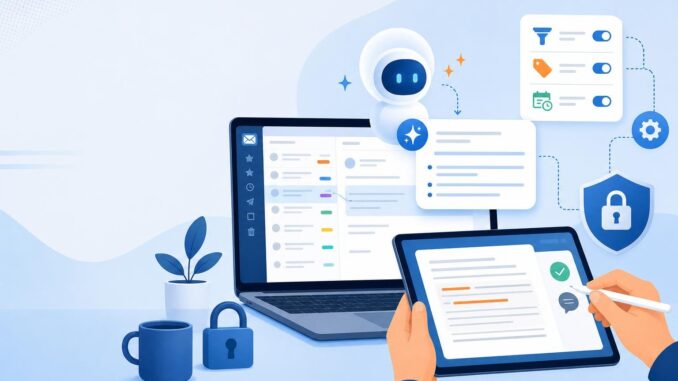
Email overload is a productivity killer. An AI-assisted triage system can sort, summarize, and draft replies to save time—but only if it’s rule-driven, auditable, and keeps humans in control. This guide shows non-engineers how to design and deploy a dependable AI email triage workflow: filter design, prompt templates, safe automation patterns, testing and monitoring, and compact Gmail and Outlook examples.
Design principles for a safe rule-driven AI email triage workflow
Goals and scope
Start with a narrow scope. Decide which inboxes and message types the workflow will touch (e.g., sales leads, partner requests, internal ops). Prioritize classes of email where automation adds clear value and lower risk—routine status updates, meeting requests, and newsletters are lower risk than legal, HR, or highly confidential messages.
Rule-first approach
Use deterministic filters to route mail before any AI processing. Filters control what the AI sees and ensure predictable behavior. Rules should label or move messages (for example, “triage/sales”, “triage/inbound-partner”) so downstream automation handles only approved categories.
Human-in-the-loop and approval gates
Always include explicit approval steps for outbound text. Drafts should land in a human’s Drafts folder, an approval queue, or a dedicated review interface. Only allow fully automated sends for very narrow, low-risk categories after a tested pilot and explicit policy.
Privacy and credentials
Minimize data exposure: redact or remove attachments and sensitive fields before sending content to any AI service. Use application scopes that limit access (mail.readonly where possible), prefer ephemeral tokens for integrations, and keep an audit log of AI interactions.
Step-by-step implementation
1. Map your inbox and build deterministic filters
List the folders, senders, subjects and recurring formats you want the AI to process. Create filters that tag, move, or flag messages so automation only touches labeled mail.
Sample Gmail filter rules (create them in Settings > Filters):
Filter 1: If subject contains "Invoice" OR from contains "billing@" then apply label "triage/finance" and skip inbox
Filter 2: If from contains "@partnercompany.com" then apply label "triage/partner" and mark important
Filter 3: If to contains myteam+leads@mydomain.com then apply label "triage/leads" and forward to sales@mydomain.com
Sample Outlook rule examples (Rules > Manage Rules):
Rule A: If sender domain is "partnercompany.com" move to folder "Triage\Partner" and add category "triage"
Rule B: If subject contains "Help" or "Support" move to folder "Triage\Support" and mark for follow-up
Rule C: If recipient is myteam+leads@mydomain.com forward to sales@mydomain.com and flag
2. Choose the automation tool
Pick a tool that matches your technical comfort and security requirements.
- No-code platforms (Zapier, Make): easy to connect email services, run AI steps, and route outputs to Drafts or Slack. Good for quick pilots.
- Native inbox features: Gmail and Outlook increasingly include AI-assisted drafts and summaries; these are convenient but check enterprise privacy settings.
- Email APIs or server-side code: more control and stronger credential handling (rotate keys, log events). Better for scaled deployments and stricter compliance needs.
3. Construct prompt templates
Use explicit, minimal templates. Always include constraints: maximum length, what to exclude (credentials, legal advice), and an approval marker.
Summarization prompt (copy-paste):
Summarize the email below in 2–4 bullet points. Mention sender, main request, any deadlines, and required actions. Exclude any credentials, account numbers, or attachments. Provide a suggested priority: High / Medium / Low.

Email:
"""
{email_body}
"""

Output format:
- Sender: ...
- Summary: ...
- Deadline: ...
- Action required: ...
- Suggested priority: ...
Classification prompt (to decide bucket/next action):
Given the email below, choose one of these categories: Sales Lead, Partner Request, Billing/Invoice, Scheduling, Support, Internal, Newsletter, Other. Explain in one sentence why.

Email:
"""
{email_body}
"""

Return JSON: {"category": "...", "reason": "..."}
Reply draft prompt (for human review):
Draft a professional reply to the email below. Keep it concise (3–6 sentences). Use a polite tone matching company voice: friendly and direct. Include: acknowledgement, one suggested next step, and a closing. Do NOT include any sensitive data (passwords, tokens, account numbers). Mark the draft at the top with [AI DRAFT - REVIEW].

Email from: {sender_name} ({sender_email})
Subject: {subject}

Email body:
"""
{email_body}
"""

Draft reply:
4. Build the automation flow (example patterns)
Two compact workflow examples:
- Zapier/Make flow for Gmail: trigger = New email with label “triage/*” → action = Extract text, call AI for classification and summary → action = Store summary in a spreadsheet and create a Draft reply in Gmail (with [AI DRAFT – REVIEW]) → action = notify reviewer in Slack/Teams.
- Outlook + serverless function: trigger = new mail in “Triage” folder via Graph API → serverless function redacts PII, calls AI for classification and draft → function writes draft to user’s Drafts folder and creates an approval task in your task system channel.
5. Human approval UX and safeguards
Make review friction minimal: place drafts in the user’s Drafts folder, or provide a single approval dashboard that shows email, AI summary, and the draft with Accept / Edit / Reject buttons. Record who approved, timestamp, and whether the draft was edited.
6. Credential and data handling rules
- Limit scope: use read-only tokens where possible, and avoid granting broad mailbox write permissions unless necessary.
- Redact sensitive fields automatically before sending content to an AI endpoint (e.g., account numbers, SSNs, API keys).
- Keep an immutable audit trail of AI inputs and outputs in secure storage for at least your organization’s retention period.
- Rotate integration keys and prefer short-lived tokens or OAuth where supported.
7. Testing checklist
- Unit tests: create representative sample emails for each category and verify classification and summary outputs match expectations.
- Edge cases: include attachments, forwarded threads, quoted signatures, and non-English text.
- Security tests: verify redaction removes all PII before sending to AI; ensure tokens cannot send mail without approval.
- Load tests: simulate peak email arrival to observe latency and failure handling.
8. Monitoring metrics and alerts
Track and review these metrics weekly:
- Volume processed by AI and by rule.
- Human override rate (percentage of AI drafts edited or rejected).
- Time-to-triage: average time from receipt to summary/draft creation.
- False classifications and routing errors (manual corrections).
- Failures and API errors (and their causes).
Limitations and when not to use automation
AI triage is not a replacement for human judgment in sensitive scenarios. Avoid automated sending for legal, HR, regulatory, or clinical content. LLMs can omit context or hallucinate; never rely on AI for factual verification unless the workflow includes a human editor and a reliable fact-checking source.
Quick Gmail and Outlook examples summary
Gmail: use labels and filters to mark triage candidates, then a no-code tool or Google Apps Script to call AI, create Drafts, and notify reviewers. Outlook: use mailbox rules to move to a “Triage” folder, then the Graph API or an automation platform to run AI steps and create drafts or approval tasks.
Conclusion
A practical, safe AI email triage workflow starts with simple, deterministic filters and keeps humans in the critical loop. Use clear prompt templates, redact sensitive data, limit API scopes, and monitor performance with explicit metrics. Start small, test thoroughly, and expand categories only after observing low override rates and reliable behavior.
FAQ
How do I decide which emails to let the AI handle?
Begin with low-risk, high-volume categories: repetitive inquiries, meeting scheduling, and routine vendor messages. Exclude legal, HR, finance-critical items, and any email containing sensitive personal data until you have robust redaction and approval controls.
Can the AI automatically send replies?
Yes, but only for narrowly defined, vetted cases (for example, auto-confirmations for known workflows). Best practice is to require human approval for all outbound messages except those that are low-risk and have been validated during a pilot.
How do I protect confidential information from being sent to an AI service?
Implement automatic redaction rules, remove attachments, and filter out emails matching sensitive patterns. Use least-privilege credentials, ephemeral tokens, and keep an audit log of all AI requests and responses.
What are the first monitoring signs that the workflow needs tuning?
High human override rates, frequent misclassifications, unexpected API errors, or user complaints about tone or content indicate the need to adjust filters, refine prompts, or tighten redaction rules. Monitor these metrics and run targeted retraining of prompt phrasing or rule changes.