
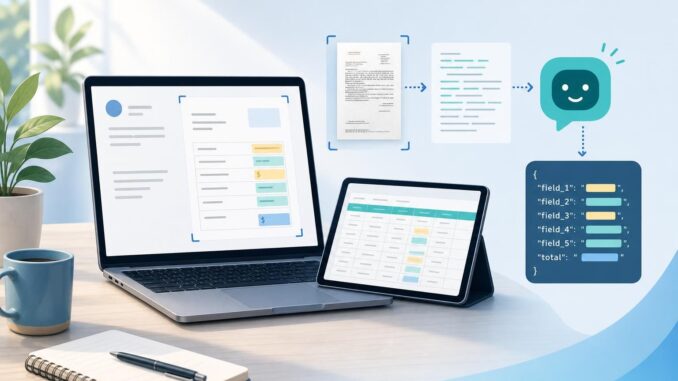
If you handle invoices, receipts, or other semi-structured PDFs, turning them into usable tables is a common pain. You don’t need to be an engineer to extract invoice numbers, dates, line items, totals, and vendor details. This tutorial shows a practical no-code/low-code workflow that combines reliable OCR, a clear LLM extraction prompt, lightweight validation rules, and an export to CSV or Google Sheets.
Overview and one-line workflow
The core steps are: 1) OCR the PDF to get selectable text and basic layout, 2) preprocess fixes (rotate, split pages), 3) send the text (and optional layout hints) to an LLM with a fixed output schema, 4) validate the LLM JSON, and 5) append/save results as CSV. The rest of this article breaks each step down with examples you can copy and adapt.
Step 1 — Choose and run OCR (what to watch for)
What to pick
Any OCR that produces selectable text and returns per-word or per-line confidence scores is helpful. Options include desktop OCR, cloud OCR services, and free tools like Tesseract. For invoices, prefer an OCR that can also detect tables or returns text with simple layout markers (line breaks, column positions).
Quality checks and preprocessing
- Check resolution: ideal scans are 300 DPI or higher. Low-resolution images increase OCR errors.
- Rotate and deskew: many OCR tools have automatic deskew. If not, rotate pages before OCR.
- Split multi-page PDFs: decide whether each invoice is a single document or multiple invoices per file; split when needed.
- Use table-capable OCR for line items: this preserves columns like qty/price/amount.
Keep the OCR output as plain text plus any confidence metadata. The confidence numbers let you triage low-quality results before sending them to an LLM.
Step 2 — Prepare a minimal preprocessing pass
Run a small normalization on OCR text to improve LLM reliability:
- Normalize whitespace and remove obvious OCR artifacts (repeated special characters, broken words).
- Normalize common date formats to a canonical format if possible (DD/MM/YYYY or YYYY-MM-DD).
- Tag or remove header/footer content if it repeats on every page (page numbers, company disclaimers).
For line items, try to keep each line as a single row of text or use the table output from OCR. If the OCR returns bounding boxes you can include a short hint like “table on page 1, columns: description, qty, unit price, line total” in the prompt.
Step 3 — LLM extraction: prompt template and schema
Use an LLM as a smart parser: give it the OCR text and a precise output schema. Always request machine-readable JSON and show one short example. Below is a compact prompt pattern suitable for non-developers integrating via a no-code connector that accepts a prompt and returns text.
{
  "system": "You are a data extraction assistant. Return only valid JSON matching the schema.",
  "user": "OCR_TEXT: [paste OCR text here]\n\nExtract fields into this JSON schema:\n{\n  \"invoice_number\": string,\n  \"invoice_date\": YYYY-MM-DD or empty,\n  \"vendor_name\": string,\n  \"due_date\": YYYY-MM-DD or empty,\n  \"line_items\": [ {\"description\": string, \"qty\": number, \"unit_price\": number, \"line_total\": number } ],\n  \"subtotal\": number,\n  \"tax\": number or 0,\n  \"total\": number\n}\nIf a value is missing, set it to null. For dates try to standardize to YYYY-MM-DD. For numbers remove currency symbols."
}
Include one brief example right after the schema so the model has a clear target format:
Example output:
{
  "invoice_number": "INV-2023-045",
  "invoice_date": "2023-05-12",
  "vendor_name": "Acme Supplies",
  "due_date": "2023-06-12",
  "line_items": [
    {"description": "Widget A", "qty": 2, "unit_price": 15.5, "line_total": 31.0}
  ],
  "subtotal": 31.0,
  "tax": 3.1,
  "total": 34.1
}
Why this works: the LLM is guided to return strict JSON so downstream automation can parse it automatically.
Step 4 — Lightweight validation rules
Don’t trust raw output blindly. Run a few simple checks before accepting a record:
- Required fields: invoice_number and total should not be null. Flag otherwise.
- Date format: check YYYY-MM-DD. If not, attempt a second pass to parse common formats.
- Numeric sanity: subtotal + tax ≈ total (allow a small rounding tolerance).
- Line item totals: qty × unit_price ≈ line_total for each row.
- OCR confidence: if many words have low confidence, send the document for manual review.
Implement these rules in your no-code platform via conditional steps or in a spreadsheet using formulas. If a rule fails, route that invoice to a “human review” folder or label it for manual correction.
Step 5 — Automate storage and CSV export
A simple no-code flow looks like this:
- Trigger: new PDF uploaded to a cloud folder or received by email.
- OCR step: run OCR and output text + confidences.
- LLM step: send normalized OCR text and schema prompt; receive JSON.
- Validation step: apply the rules above; if OK, append to CSV/Google Sheet; if not, mark for review.
- Optional: send notification when review items accumulate or on errors.
Most no-code platforms let you append rows to Google Sheets or to a CSV stored in cloud storage. Once in Sheets you can export a CSV or connect that sheet to accounting software.
Handling multi-page invoices and tricky line items
Multi-page invoices often split line items across pages or include repeating headers. Strategies:
- Concatenate OCR text for all pages and include page markers (“— page 1 —“). Ask the LLM to merge line items across pages.
- If the invoice contains repeated table headers, instruct the LLM to ignore duplicate headers when assembling rows.
- For complex tables, include OCR column positions or table markup if your OCR provides them.
Example prompt hint: “Tables may span pages; merge rows for the same invoice and ignore repeated header rows.”
Optional: common SaaS building blocks (tool-agnostic)
Categories of tools that fit this stack:
- OCR services: cloud OCR or desktop OCR that returns text and confidences.
- No-code automation: connectors that trigger on new files and can call LLM endpoints and append to Sheets.
- LLMs: services that accept system/user messages and can be prompted to return strict JSON.
- Storage: Google Drive, cloud object storage or a shared folder and Google Sheets for CSV-ready tables.
Choose tools based on privacy, cost, and file volume. For sensitive invoices, select providers with the appropriate data controls.
Troubleshooting checklist
- OCR output is messy: increase scan DPI or use a better OCR engine; try image preprocessing (contrast, despeckle).
- LLM returns malformed JSON: make the schema stricter and give a clear example; wrap the LLM output in a second parsing pass that extracts the JSON block.
- Totals don’t match: add tolerance checks and flag for human review; verify currency symbols were removed correctly.
- Repeated or missing line items: include page markers in the prompt and instruct the model how to handle headers.
- High volume: batch OCR and parallelize LLM calls, but keep rate-limit and cost controls in mind.
Limitations and practical notes
LLMs are powerful parsers but they are not perfect. Common limitations:
- OCR errors propagate: garbage in, garbage out. Good OCR quality is the single most important factor.
- LLMs can produce plausible but incorrect values—always validate critical fields with rules or human review.
- Cost and latency: large documents and many LLM calls add cost and delay; design batching where possible.
- Privacy and compliance: sending invoices to third-party services can expose sensitive data. Choose tools and contracts accordingly.
Conclusion
Converting messy PDFs and invoices into structured rows is achievable without engineering by combining decent OCR, a clear LLM extraction schema, and simple validation checks. Start small with a single invoice type, build a short prompt and validation rules, and expand as accuracy improves. The core pattern—OCR, LLM extraction, validate, export—scales from a freelancer handling a few invoices to a small business automating dozens per day.
FAQ
1. How accurate are LLM-based extraction workflows?
Accuracy depends mainly on OCR quality and how predictable the document layout is. For clear, high-resolution scans and consistent invoice templates, accuracy is high after prompt tuning and basic validation. For handwritten or very noisy scans, expect more human review.
2. Can I extract handwritten invoices?
Handwritten text is much harder. Some OCR providers offer handwriting recognition, but accuracy varies. If handwriting is common, add a mandatory human review step or use specialized handwriting OCR before the LLM step.
3. Do I need a developer to implement this?
No. You can build the end-to-end flow with no-code automation platforms that support OCR connectors and LLM calls. A developer can help for advanced validation, high-volume optimizations, or custom integrations.
4. How do I handle multiple currencies and formats?
Normalize currency symbols during preprocessing and include a currency field in your extraction schema. If invoices mix currencies, add a validation rule that flags unexpected currency values for review.